How it works
WhatsApp connects in Coexistence mode: the agent answers on the same number you already use, and you keep chatting with customers 1:1 from the WhatsApp Business app exactly like before. No new SIM, no separate line, no moving your history.
The whole connection runs through Meta’s own secure window — AssistantLabs is a verified Meta Tech Provider, so you approve the permissions with Facebook and we never see your password or read your private chats.
Before you start
Two things need to exist first. If you already run WhatsApp for your business, you almost certainly have both.
- The WhatsApp Business app — the number you use for customers, on the Business app (not the personal one), updated to version 2.24.17 or newer
- A Meta Business account — the free Facebook business account that owns your presence; you can create one during the flow if you don’t have it
Already on WhatsApp? That’s fine — Coexistence is built exactly for numbers that are already active on WhatsApp. You don’t migrate or lose anything.
Open the connect flow
Everything starts in Settings. Head to Channels and pick WhatsApp.
Connect — browser, then phone
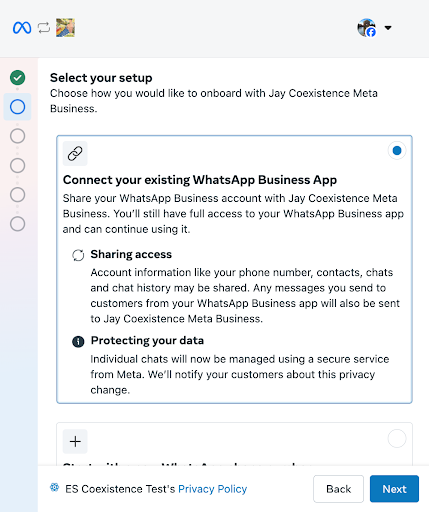
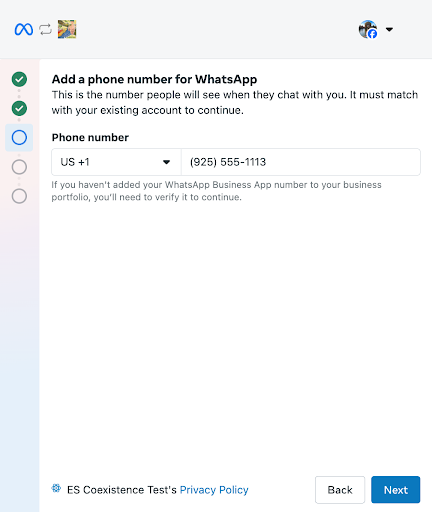
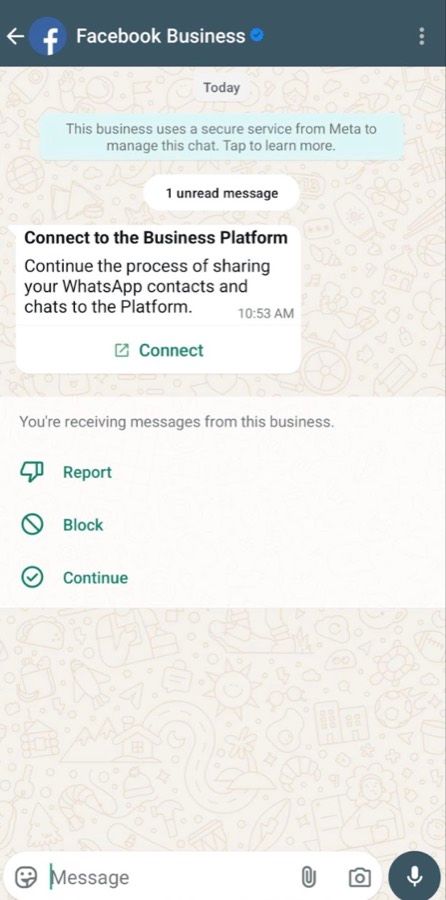
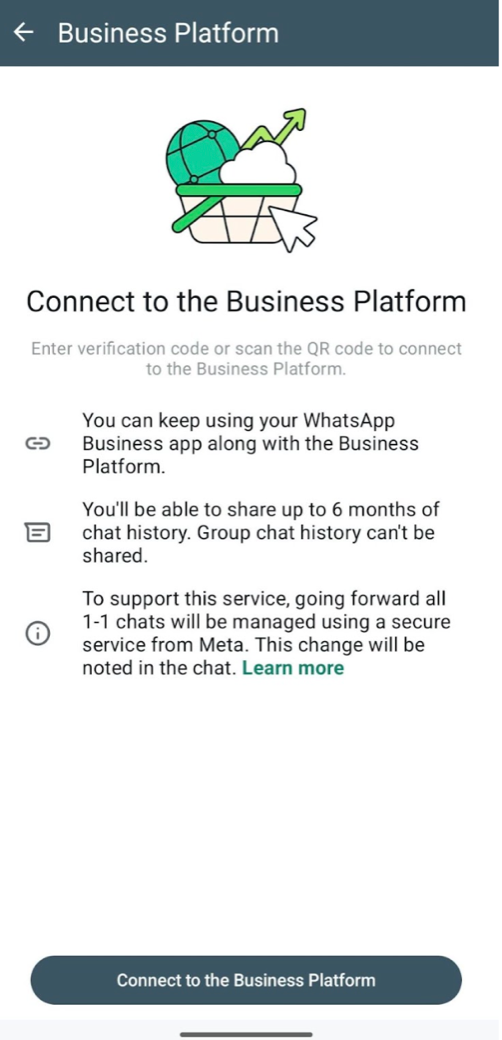
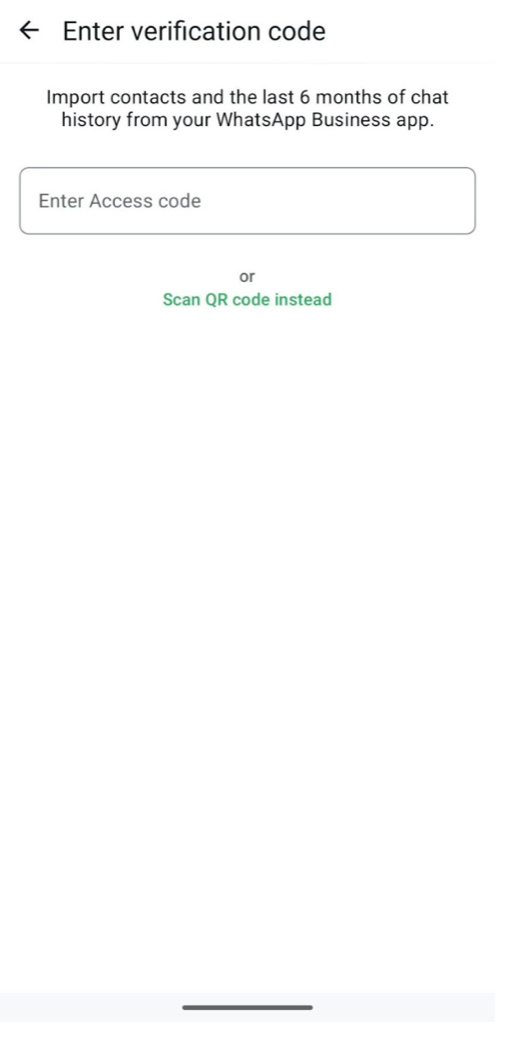
The connection happens across two screens: a Meta window in your browser, then a couple of taps in the WhatsApp Business app on your phone. A verification code links the two.
In the browser window — three quick screens:
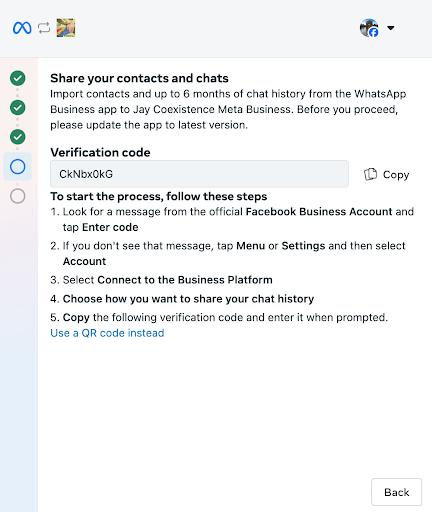
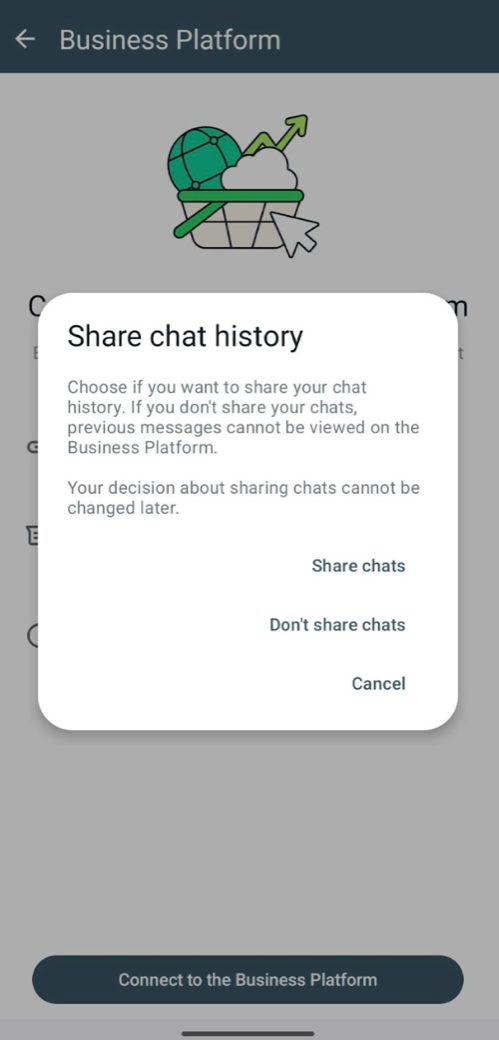
Open the WhatsApp Business app and follow four screens — the last one is where you paste that code:
What changes in your app
You keep using the WhatsApp Business app exactly as before — this just adds the agent on top. A few app-only features switch off, because they can't run across both.
Keeps working:
- Your 1:1 chats — still yours, and now mirrored between your phone and the agent
- Contacts & history — your contacts and last 6 months of chats sync over
- Calls, catalog, profile — voice/video calls, your catalog and orders, your business profile: unchanged
Switched off in 1:1 chats:
- Disappearing, View once, Live location — these turn off
- Broadcast lists — become read-only; you can't create new ones
- Group chats — keep working in the app, but aren't synced to the agent
Linked devices You can keep up to four linked devices. They unlink once when you connect — just re-link them afterwards. (WhatsApp Web and desktop work; the Windows and WearOS apps don't.)
Connected — start muted
Once the sync finishes, the channel shows as connected. Before it answers anyone, leave Auto-reply off and send yourself a test to see how it responds.
Send a test message from your own phone and read the reply:
Why muted first? A day or two on mute lets you see the real questions customers ask — and fix anything the agent gets wrong — before it answers a single one for real.
Turn on auto-reply
Happy with the answers? Flip Auto-reply on. From now on the agent responds the moment a customer messages — day and night.
Templates & the 24-hour window
WhatsApp has one rule worth knowing. For 24 hoursafter a customer’s last message, the agent can reply freely — this is the service window. Outside it, WhatsApp only allows pre-approved templates.
- Inside the 24-hour window — the agent answers normally, no templates needed
- Outside it — to reach out first you use an approved template (an order update, a reminder)
- Approved by Meta — you’ll see each template’s status: Approved, Pending, or Rejected
You usually don’t touch this For everyday customer questions the agent stays well inside the window. Templates matter only when you start the conversation — see the notifications guide.
Good to know
- Your private chats stay yours — the agent only sees business conversations, never your personal ones
- Muted ≠ off — a connected-but-muted channel still collects every message for you to see
- Pricing is transparent — messages you send from the app stay free; the agent’s messages follow WhatsApp’s standard rates
- Disconnect anytime — in the WhatsApp Business app: Settings → Account → Business Platform → Disconnect. The number goes back to app-only
Doing the full launch? This is the WhatsApp part of Week 2, which walks the whole launch end to end — observe, train, then go live.