Signing in vs forwarding
There are two ways to bring a mailbox into AssistantLabs. Forwarding works with any mailbox. Signing in reads the mailbox directly — and only signing in can see the replies you send yourself.
Forwarding
- Works with any mailbox, including personal @gmail.com
- Only incoming mail is copied to us
- Replies you send from Gmail never reach the conversation
Signing in (this guide)
- Google Workspace mailboxes (your own domain)
- Replies go out from your own address and land in your Sent folder
- Replies you send from Gmail join the conversation, and the AI steps back on it
Your admin trusts AssistantLabs
Google asks a company’s admin to approve any app that reads mail. It is done once for the whole company, takes about two minutes, and needs someone who manages your Google Workspace.
First, get our client ID. In AssistantLabs open Settings → Channels → Email and, in the Using Google Workspace? box, click How to set it up. The steps and the ID appear underneath, with a Copy button — send them to your admin as they are.
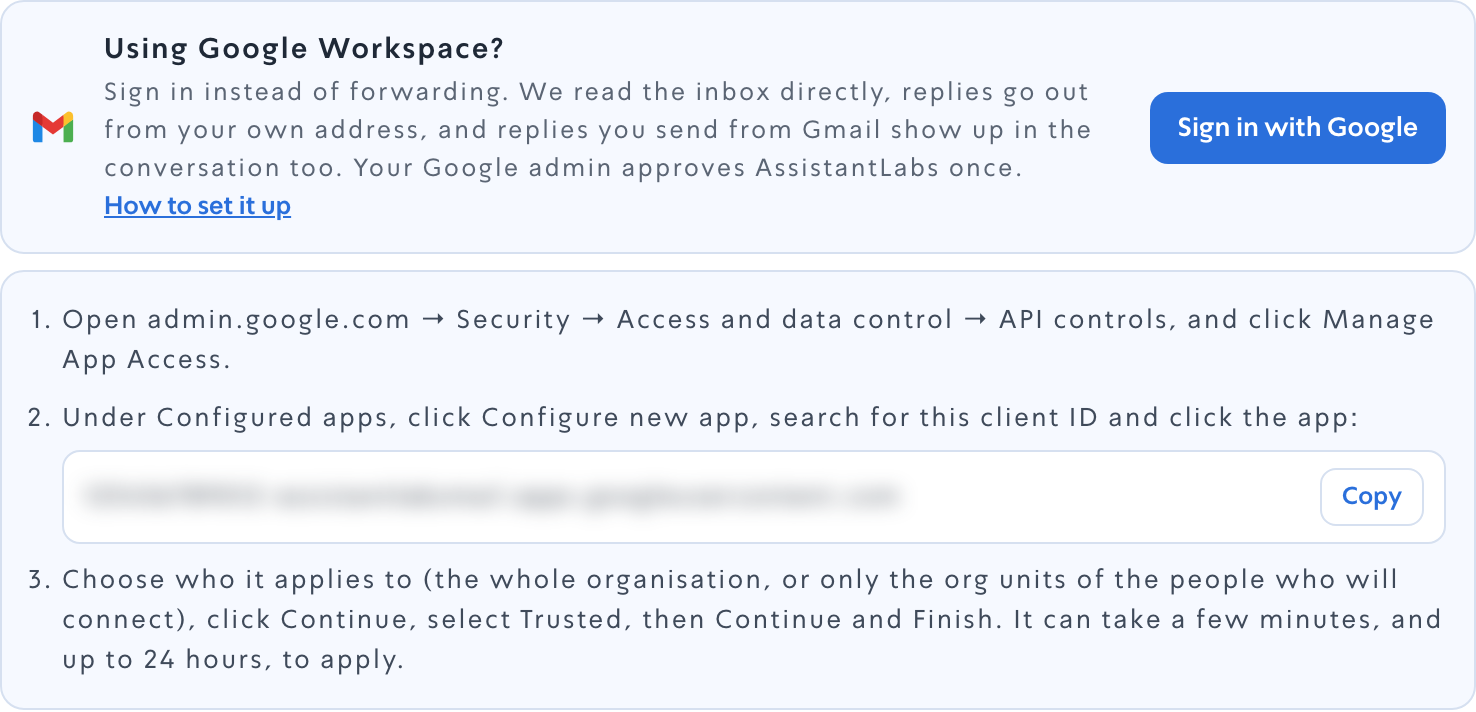
Then your admin:
- Opens admin.google.com → Security → Access and data control → API controls, and clicks Manage App Access.
App access control
Manage third-party and internal app access to Google Workspace data.
MANAGE APP ACCESSDomain wide delegation
Not needed for AssistantLabs — leave this alone.
Drawn to show where to click — Google’s real screen may look slightly different.
- Under Configured apps, clicks Configure new app, pastes the client ID, clicks Search, then clicks AssistantLabs in the results.
Search for an app
Drawn to show where to click — Google’s real screen may look slightly different.
- Under Scope, chooses who it applies to: the whole organisation, or only the org units of the people who will connect. Clicks Continue.
- Under Access to Google data, selects Trusted, clicks Continue, then Finish.
Drawn to show where to click — Google’s real screen may look slightly different.
Only some people? Google lets the admin limit this to org units (not to groups). If only Dana and the orders mailbox should connect, put them in their own org unit and trust AssistantLabs there. Inside AssistantLabs you still choose exactly which mailboxes you add.
Sign in with Google
Once your admin is done, each person connects their own mailbox. It takes a minute.
- In AssistantLabs open Settings → Channels → Email and click Sign in with Google.

- Choose the Google account of the mailbox you want to connect — the business one, not a personal account.
- Google lists two permissions: reading your email and sending email on your behalf. Leave both ticked and click Continue.
Drawn to show where to click — Google’s real screen may look slightly different.
You come back to AssistantLabs and see “Mailbox connected”. New mail starts arriving from that moment — mail that was already in the inbox is not imported.
The AI stays quiet at first A mailbox connected this way starts on “Inbox only — I’ll reply manually”. Emails arrive and you answer them; switch the mailbox to automatic replies or drafts when you are ready.
Check it is receiving
The mailbox now appears in your list. Send it a test email from another address.
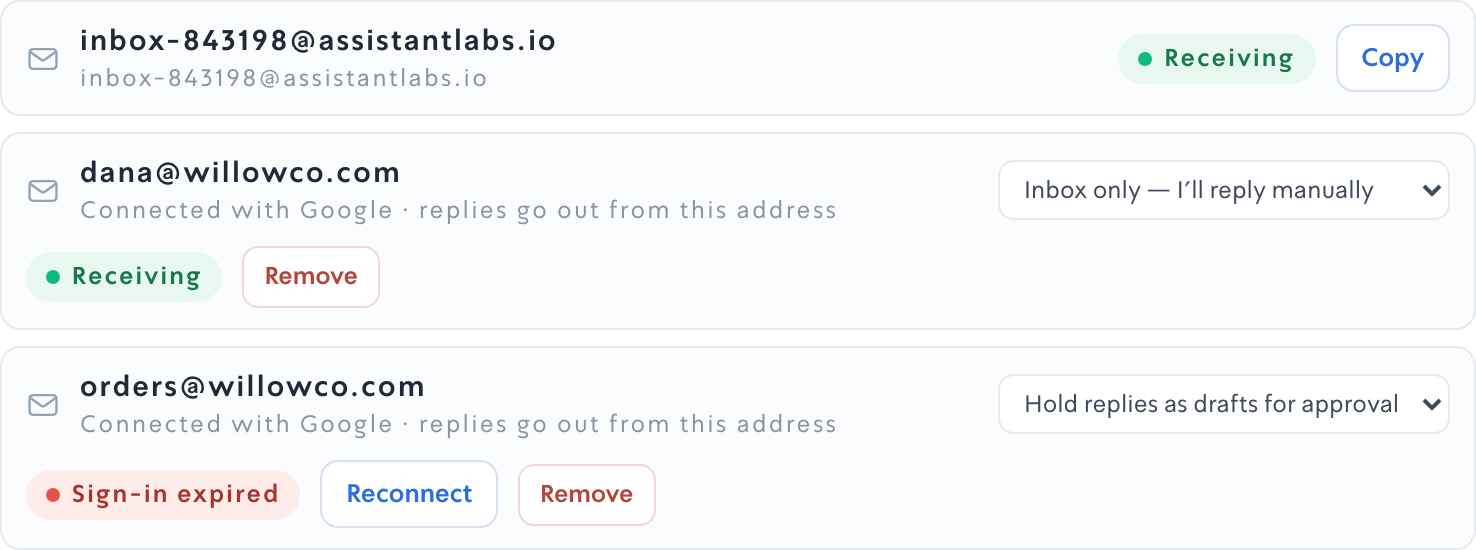
- Connected with Google — under the address: replies go out from this mailbox.
- Receiving — shows once the first email has arrived.
- Reply mode — the menu beside it: inbox only, drafts for approval, or automatic.
If something goes wrong
The four things that actually happen:
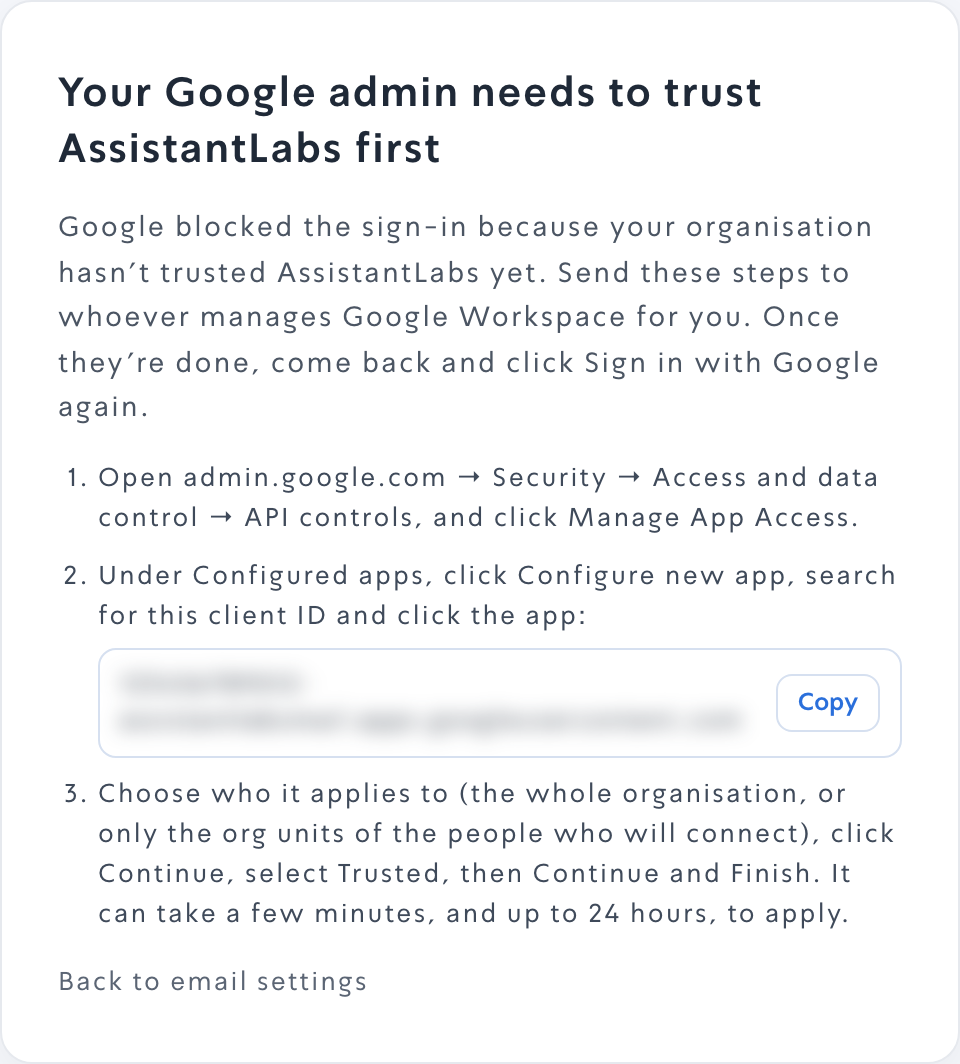
“Access blocked” from Google. Your admin has not trusted AssistantLabs yet, or it has not applied yet. Google usually shows this on its own page; if you land back in AssistantLabs, you see the steps to send your admin.
“Signing in works for Google Workspace accounts only.” You chose a personal @gmail.com account. Pick the business account, or use forwarding for a personal address.
“Both permissions are needed.” One of the two boxes was unticked on Google’s screen. Click Sign in with Google again and leave both ticked.
“Sign-in expired” on the mailbox. The password changed, access was removed, or the admin stopped trusting the app. Click Reconnect and sign in as the same mailbox.
Using Microsoft 365 or Outlook instead? The same card has Sign in with Microsoft right above it. No admin to ask, or a personal address? Set up forwarding from the email channel's setup guide.