How Meta organises it
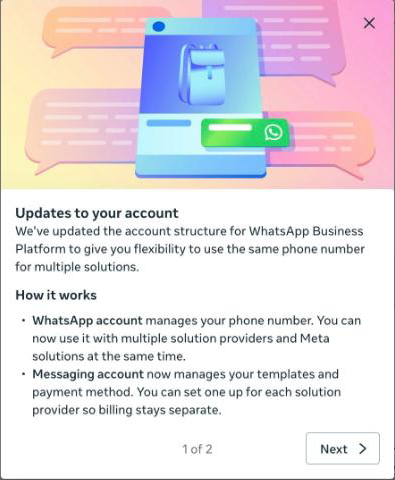
WhatsApp does not hang off your personal Facebook account. It lives inside a Meta business portfolio, in three layers — and every guide and error message about WhatsApp assumes you know which layer it means.
Create the portfolio
Already have a portfolio for this business? Skip to the next section. If not, this takes about three minutes.
- Open business.facebook.com and sign in with the Facebook account that will own the business. Use your own account, not a shared one — you are the first admin.
- On the “Select business” screen, click Create business.
- Fill in the business name (use the name customers know you by — it is what you will pick later), your name and a work email.
- Add the business details Meta asks for next (address, phone, website), then confirm the email Meta sends you. The portfolio is not usable until you do.
Verification can wait Meta also offers “business verification” (a Verified badge on the portfolio). You do not need it to add a number and start. You will need it later for higher messaging limits.
Find WhatsApp Manager
WhatsApp Manager is where you see your numbers, message templates and quality rating. You reach it from the portfolio.
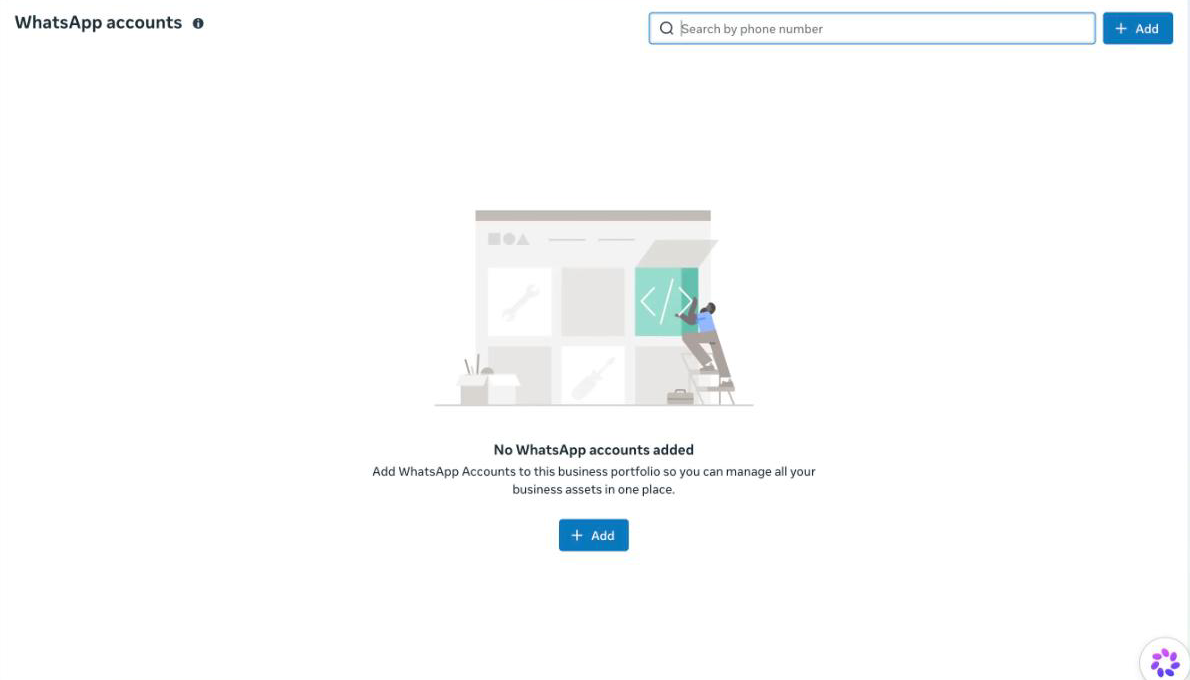
- Open your portfolio, then Settings (the cog) → Accounts → WhatsApp accounts.
- A new portfolio shows “No WhatsApp accounts added”. That is expected — the next section fills it.
Once a WhatsApp account exists, WhatsApp Manager opens at business.facebook.com/latest/whatsapp_manager. Its menu has Overview, Message templates, Insights, and under Account tools → Phone numbers, which is the page you will use most.
Add your phone number
Assigning the number means creating a WhatsApp account inside the portfolio and attaching the number to it.
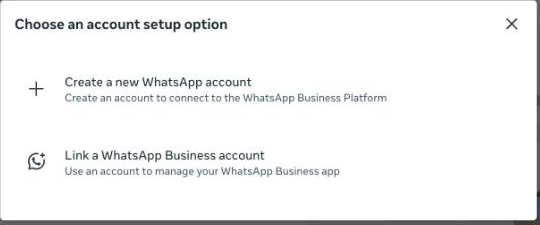
- On WhatsApp accounts, click Add.
- Choose how to start. Create a new WhatsApp account is for a number that is not in the WhatsApp Business app yet. Link a WhatsApp Business account is for a number you already use in the WhatsApp Business app.
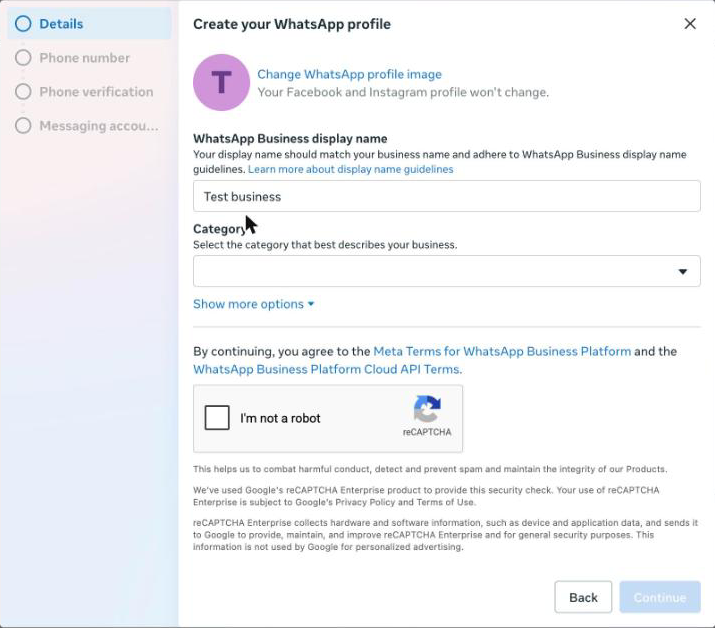
- For a new account, Meta shows a four-step panel: Details, Phone number, Phone verification, Messaging account. Start with the profile: the display name (it should match your business name; Meta checks it) and a category.
- Accept the terms and tick the “I’m not a robot” box, then continue.
- Enter the phone number, then the verification code Meta sends to it by text message or by a phone call. Finish the last step, Messaging account, which is where templates and billing attach.
Check it worked
Go to WhatsApp Manager → Account tools → Phone numbers. Your number should be in the list.

- Status: Connected — the number is live on the platform.
- Quality rating — starts high; it drops if many customers block or report you.
- Display name — can show as pending while Meta reviews it. That is normal.
Connect it to your agent
The Meta side is done. Now give your agent the number.
In your assistant go to Build → Connect → Channels → WhatsApp and follow Connect WhatsApp to your agent. When Meta asks for a portfolio, choose the one you just set up.