
The message
You opened the WhatsApp connect window, chose to keep using the WhatsApp Business app, and scanned the QR code with your phone. Instead of moving on, Meta's window showed this:
Keep the code in brackets: The box ends with a reference like (#3441126:01a1…). The first number is Meta's error code, the rest is your session. Copy both — it is the one thing Meta support asks for.
What it really means
The message names AssistantLabs, so it reads like a setting on our side. It isn't one. Connecting a WhatsApp Business app number (Meta calls it coexistence) works on AssistantLabs, and businesses connect their app numbers this way regularly.
Meta documents this exact wording for one case: an app that has no access to the WhatsApp Business Platform permissions at all. That isn't the case here. When the partner is set up and the message still appears, Meta has refused this number and shown its generic partner text. Meta doesn't publish a list of the reasons, so the next section checks the known ones, most common first.
Four checks on your phone
All four are in the WhatsApp Business app. They take a few minutes.
- Another provider still holds the number. Settings → Account → Business Platform. If a connection is listed — an old chatbot, a CRM, a provider you tried once — tap Disconnect and wait at least 15 minutes. A number connects to one platform at a time.
- The app is out of date. Update the WhatsApp Business app from the App Store or Google Play. Meta requires version 2.24.17 or newer.
- Automatic lists are on. Business tools → Lists. Switch automatic lists off. Meta blocks the connection while they run.
- The account is new or quiet. Meta wants real use of the Business app before it connects a number — providers report at least 7 days of normal chats. A number that moved to the Business app this week can be refused.
Try again, the right way
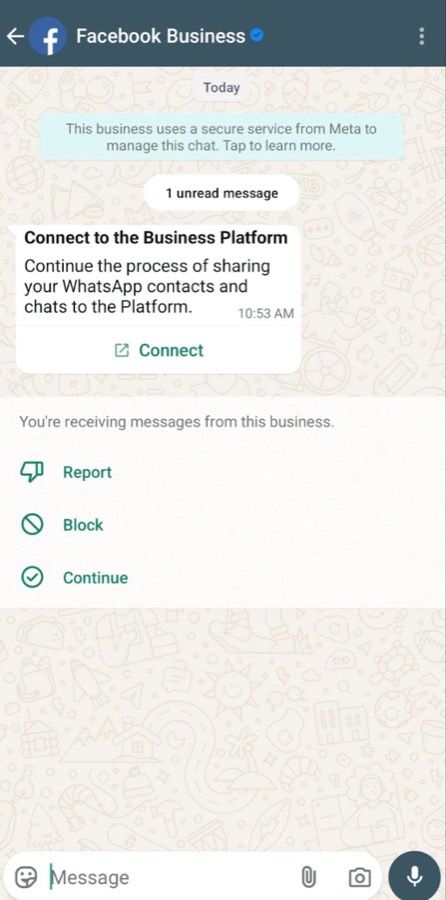
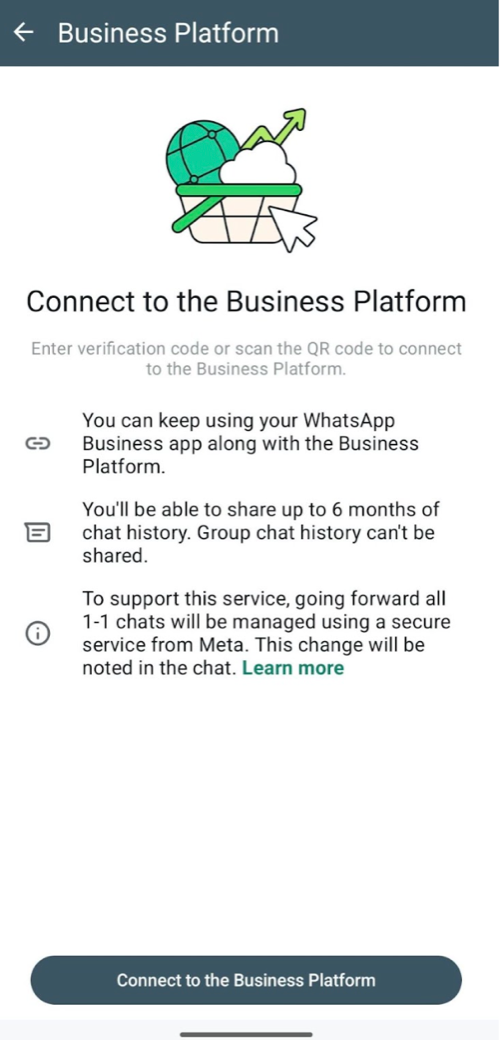
After the checks, run the connection once more from Channels → WhatsApp. When it works, the phone shows Meta's message with a Connect button and then the Business Platform screen:
Still refused?
Then the block is on Meta's side for this number, and only Meta can lift it. Send us three things and we open a case with Meta for you:
- The full code in brackets from the error box.
- The time you saw it.
- The number you tried to connect.
Reach us from AssistantLabs support. Meta cases usually take a long time. The faster way is a free integration meeting: we look at it together on your screen and can usually see what is blocking the number. If Meta refused the number earlier — a greyed-out “Not eligible” in the number list — read the “not eligible” guide instead. The full connection walkthrough is in Connect WhatsApp.